How to Create an SEO-Friendly YouTube Description?
how to write SEO-friendly YouTube descriptions with practical examples, templates, keyword tips, chapters, hashtags, and common mistakes.
Why YouTube Video Descriptions Matter
A viewer clicks your video about fixing a dripping faucet. The description says only, “Thanks for watching!” It misses a useful opportunity: the viewer cannot quickly see which type of faucet you repair, find the tools used, or jump to the relevant step.
Learning how to create an SEO-friendly YouTube description is not about filling a box with search terms. It is about explaining your video clearly, giving viewers helpful context, and making useful resources easy to find.
This guide covers a practical writing process, original YouTube description examples, formatting tips, and the current rules for hashtags, links, and chapters. None of these steps guarantees rankings, but they can make your video easier to understand and use.
What Is a YouTube Video Description?
A YouTube video description is the text that accompanies an individual video. Viewers can see part of it on the watch page and expand it to read more. Parts of a description may also appear in search results or other YouTube surfaces, depending on the device and layout.
The title names the video and makes its main promise. The description has more room to explain what that promise means: who the video is for, what it covers, and where viewers can find supporting information.
For example, a title might be “How to Grow Basil Indoors.” Its description could clarify that the video covers growing basil from seed on a sunny windowsill, including watering and harvesting tips.
Both should match the actual video. A description that promises advice you do not provide may attract the wrong audience and can be misleading.
How YouTube Uses Video Descriptions for Search and Discovery
YouTube says its search system considers relevance, engagement, and quality. To estimate relevance, it looks at how well the title, tags, description, and video content match a search query. Its systems can also consider engagement and quality signals, and their relative importance can vary by search. YouTube explains how Search works.
Your description is therefore one piece of context, not a ranking shortcut. A clear description cannot turn an unrelated video into a useful answer, and no particular phrase guarantees a position in search results.
Think about search intent: what does someone expect when they type a phrase? A person searching “replace a bike inner tube” probably wants a demonstration, while someone searching “bike tire vs. inner tube” may need an explanation. Describe the result your video actually delivers.
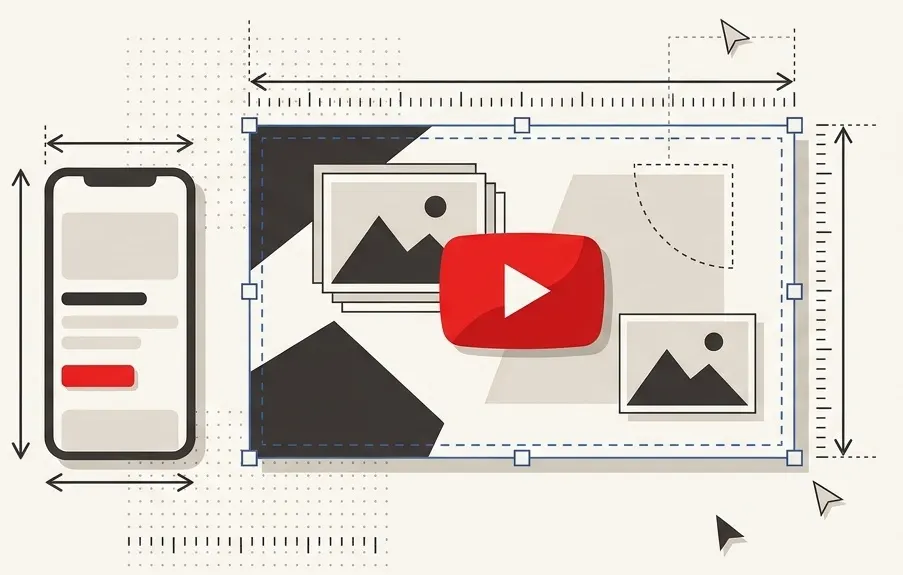
Your title, thumbnail, description, and video should tell a consistent story. The title and thumbnail help people decide whether to watch; the description adds detail; and the video must deliver what all three suggest. For the visual side, see the YouTube thumbnail size and design guide.
How to Create an SEO-Friendly YouTube Description Step by Step
1. Identify the viewer and the video's purpose
Finish this sentence: “This video helps this audience do or understand this specific thing.” For example: “This video helps first-time apartment gardeners grow basil from seed.” That sentence is a useful foundation for the opening.
2. Research phrases people use
Start typing your topic into YouTube search and note relevant suggestions. Look at the questions viewers ask in comments, the wording used in search results, and search terms in your own YouTube Analytics when data is available. YouTube also recommends using its Analytics research tools and Google Ads Keyword Planner for keyword ideas.
Suggestions are ideas, not proof of search volume or a guarantee of traffic. Choose one main phrase that fits the video, then note a few related terms that add context. Our guide to finding relevant YouTube keywords walks through the research process.
3. Write the opening in plain English
Say what the video covers and why it is useful. Include your main topic naturally, but do not force an exact phrase if it makes the sentence awkward. A specific detail—such as the audience, method, or problem solved—helps viewers judge whether the video is right for them.
4. Add the details viewers will need
Summarize the main points, identify any important limitations, and include resources or credits where appropriate. For a recipe, this might mean ingredients and quantities. For a software tutorial, it could mean the version demonstrated or prerequisites.
5. Organize, check, and publish
Add chapters if they help viewers navigate, followed by relevant links and a simple call to action. Read the finished description aloud, check every factual claim, and preview it on desktop and mobile. Finally, make sure the title and thumbnail are consistent with the video. For help with the title, see how to write clearer YouTube video titles.
Where to Place Your Main Keyword in a YouTube Description
Put the main topic near the beginning when it fits naturally. YouTube recommends identifying one or two main words that describe the video and featuring them prominently in the title and description. This helps make the subject clear to viewers and gives search useful context. See YouTube's description tips.
For a video about repairing a puncture, the opening might be: “Learn how to fix a flat bike tire at home using tire levers, a patch, and a pump.” Related phrases such as “patch an inner tube” can appear later when they explain a step actually shown.
There is no official rule requiring the keyword to be the first word, appear a set number of times, or be repeated in every paragraph. Clarity is the goal.
How Long Should a YouTube Description Be?
YouTube allows up to 5,000 characters in a video description. That is a maximum, not a recommended length. YouTube does not prescribe an ideal word count for every video. YouTube's video settings documentation explains the limit.
A short demonstration may need only a concise summary and a relevant credit. A detailed lesson might need several paragraphs, a resource list, and chapters. Stop when you have included what viewers need; do not add filler just to use more space.
Use short paragraphs, blank lines, and clear labels such as “Resources” or “Chapters” when they make the description easier to scan. Place the most useful information before a long channel introduction or repeated social links.
What Should You Include in a YouTube Video Description?
The best YouTube description format depends on the video, but this order works well as a starting point:
- Opening summary: Name the subject and the viewer's expected outcome.
- Supporting details: Explain the main points, audience, or requirements.
- Chapters: Add accurate timestamps for videos that benefit from navigation.
- Resources and credits: Include relevant links, sources, collaborators, and disclosures when appropriate.
- Next step: Suggest a related video, invite a useful comment, or explain what viewers can expect if they subscribe.
A shared channel footer can save time, but the video-specific summary should be unique. If a link is no longer useful, remove it rather than preserving it out of habit.
How to Write the First Two or Three Lines of a Description
The first lines deserve special attention because viewers may see them before expanding the description. The exact amount visible varies by screen and layout, so do not rely on a fixed number of characters.
A useful opening answers two questions: What is this video about? and What will I get from watching?
Less helpful: “Welcome back! Today I have another video for you. Don't forget to subscribe.”
More helpful: “Learn how to clean a coffee grinder at home without damaging the burrs. This beginner-friendly walkthrough covers disassembly, brushing, and reassembly.”
The second version names the task, the audience, and the steps. A channel greeting can still appear later if it adds personality, but it should not hide the reason to watch.
YouTube Description Templates for Different Types of Videos
These original examples are ready to adapt. Each assumes the video actually includes the details described. Any timestamps are illustrative: replace them with the real times in your own video.
1. Educational tutorial
Learn how to create a monthly budget in a spreadsheet, even if you've never used formulas before. We'll build a simple income and expense tracker and calculate what's left at the end of the month.
00:00 What we'll build
01:05 Add income and expense categories
03:20 Calculate the remaining balance
05:10 Review and adjust the budgetWhich part of budgeting would you like to see explained next?
Why it works: The description identifies the task, the beginner audience, and the result. Chapters make the lesson easier to revisit.
2. Gaming video
Can I survive my first night in Minecraft without building a shelter? Follow this survival challenge as I gather supplies, search for food, and try to stay safe until sunrise.
Challenge rule: no enclosed shelter before the first morning.
What rule should I add to the next survival challenge?
Why it works: It names the game and mode while explaining the specific challenge. The question invites a relevant response without promising an outcome.
3. Technology review
This budget laptop review looks at everyday writing, video calls, and basic photo editing after two weeks of use. I'll discuss the screen, keyboard, battery experience, and the trade-offs I noticed.
00:00 Who this laptop is for
01:10 Screen and keyboard
03:25 Everyday performance
05:40 Battery experience and verdictMy experience reflects the configuration and tasks shown in the video; your results may differ.
Why it works: It explains the evaluation criteria and avoids claiming that one device is best for everyone. For a real review, add the exact model and disclose any relevant commercial relationship.
4. Cooking or recipe video
Make a one-pan chickpea dinner with tomatoes and spinach. This simple recipe serves two and shows how to build flavor with pantry spices.
Ingredients: one 15-ounce can of chickpeas, drained; one 14-ounce can of diced tomatoes; two handfuls of spinach; one small onion; one tablespoon of olive oil; one teaspoon of smoked paprika; and salt to taste.
Soften the onion in oil, add the paprika, chickpeas, and tomatoes, then simmer until hot. Stir in the spinach until wilted. Serve as shown in the video.
Why it works: Viewers can quickly find the dish, serving size, ingredients, and basic method. Keep quantities and instructions consistent with what appears on screen.
5. YouTube Shorts video
Keep fresh herbs upright in the fridge: trim the stems, place them in a small jar of water, and cover the leaves loosely. This quick tip demonstrates the setup with parsley.
See the related video linked from this Short for more herb-storage tips. #KitchenTips #Parsley
Why it works: It states the tip immediately and uses relevant hashtags. The suggested next step assumes a related video has actually been attached to the Short.
A reusable starting format
When you need a simple YouTube description template, write one sentence about the result, one or two sentences about what the video covers, and then add only the resources, chapters, credits, or next steps that genuinely apply. The examples above show how that structure changes with the content.
Good vs. Bad YouTube Description Examples
Imagine a video showing how to replace a loose cabinet hinge.
Before: “Cabinet repair, cabinet repair tips, best cabinet fix, hinges, DIY, home repair. Like and subscribe!”
After: “Learn how to replace a loose cabinet hinge with a matching hinge and a screwdriver. This walkthrough shows how to remove the old hardware, align the door, and check that it closes properly.
Before starting, compare the new hinge with the old one and check that the screw holes line up. What other small cabinet repairs would you like to learn?”
The first version repeats broad terms but leaves the viewer guessing. The revision explains the task, gives useful context, and includes a relevant question. It should only be used if the video demonstrates those steps.
How to Add Keywords Without Keyword Stuffing
Use the words your audience would naturally use, then expand the explanation with details rather than a list of near-identical phrases. For a video about growing basil indoors, useful supporting language might include “starting seeds,” “windowsill,” and “watering”—if those topics appear in the video.
Read each sentence aloud. If a phrase exists only to repeat the keyword and makes the sentence harder to understand, remove it. Avoid inserting unrelated trending names or subjects, even if they seem popular.
Do not confuse keywords in readable sentences with video tags in YouTube Studio. YouTube says tags generally play a minimal role in discovery, though they can help with common misspellings; it also warns against adding excessive tags to descriptions. Read YouTube's tag guidance and our explanation of when YouTube tags are useful.
How to Use Hashtags, Links, Chapters, and Timestamps
Hashtags
A keyword is a word or phrase that describes a topic; a hashtag adds the # symbol and links to a page of related content. For example, “indoor basil care” is a keyword phrase, while “#IndoorGardening” is a hashtag.
Hashtags are optional. Use them when they accurately connect your video to a relevant topic, and avoid adding them merely to fill space. YouTube may display up to three hashtags from the description near the title. Hashtags cannot contain spaces, and if a video has more than 60 hashtags, YouTube says it ignores all of them. Misleading or unrelated hashtags can lead to removal. See YouTube's hashtag policies.
For ideas, try the YouTube Hashtag Generator, then keep only suggestions that genuinely describe the video.
Links
Include links that help viewers take the next step: a relevant playlist, a source cited in the video, or a resource you demonstrate. Label each link clearly, test it before publishing, and disclose affiliate or sponsored relationships where required.
Link behavior differs by format. YouTube says URLs in Shorts descriptions and comments are not clickable. Channel profile links and the related-video link in a Short can offer other ways to direct viewers. For long-form descriptions, clickable external links require access to advanced features. Check YouTube's link-sharing guidance for the current details.
Chapters and timestamps
Chapters divide a video into labeled sections. To add manual chapters, YouTube says the first timestamp must start at 00:00; include at least three timestamps in ascending order, and make each chapter at least 10 seconds long. Manual chapters override automatic chapters. Availability can depend on feature access and eligibility. See YouTube's chapter instructions.
Check every timestamp against the final edit. A precise label such as “03:20 Adjust the hinge” is more useful than “03:20 More tips.” If the video changes, update the timestamps too.
Common YouTube Description Mistakes to Avoid
- Leaving the description empty: Viewers lose a useful summary and resources.
- Copying the same text everywhere: A reusable footer is fine, but the opening should explain the individual video.
- Stuffing keywords: Repetition and tag lists make the description harder to read and may violate spam policies.
- Making misleading claims: Do not promise a tutorial, result, product, or topic that the video does not deliver.
- Adding unrelated hashtags: Relevance matters more than chasing a popular label.
- Leaving broken or irrelevant links: Check destinations and remove links that no longer help.
- Burying important details: Put the topic and essential information before long introductions or promotions.
- Publishing an unchecked generated draft: Verify claims, timestamps, links, and wording against the actual video.
- Forgetting older videos: Prices, tools, sources, and instructions can become outdated.
How to Update Old YouTube Video Descriptions
Start with videos that still receive views or contain information likely to change. In YouTube Studio, open Content, select the video, update the description, and save your changes.
Check the opening for clarity, test important links, verify chapters, and update outdated resources. If a claim was true when filmed but is no longer current, explain the distinction rather than making the original footage appear newer than it is. Where relevant, use YouTube's correction feature or add a clearly dated clarification.
After an update, review the video's traffic sources and search terms in Analytics over time. Changes in views can have many causes, so a before-and-after comparison alone cannot prove that a description edit caused a result.
How to Use a YouTube Description Generator
A generator can help you move past a blank page, especially when you already know your topic and main points. The YouTube Description Generator provides a starting draft that you can edit for your video.
- Write down the actual topic, audience, and main points.
- Enter the available details into the generator and create a draft.
- Remove claims, keywords, or sections that do not match the video.
- Add real resources, accurate timestamps, credits, and disclosures as needed.
- Rewrite the opening in your own voice and check the final result before publishing.
A tool cannot verify what happens in your footage or guarantee performance. Treat its output as material to review, not a finished description that must be used unchanged.
Frequently Asked Questions
How do I write an SEO-friendly YouTube description?
Start with an accurate summary of the video's subject and value. Use the main topic naturally, add useful supporting details, and organize resources so viewers can find them.
How many characters can a YouTube description have?
YouTube's documented maximum is 5,000 characters. Use the space you need; the limit is not a target.
How important is the first line of a YouTube description?
It is valuable because viewers may see it before expanding the description. Make the topic clear early, while remembering that visible text varies by device and layout.
Should I put keywords in my YouTube description?
Yes, when they accurately describe the video and fit naturally into useful sentences. Avoid repetition for its own sake.
Do YouTube descriptions help videos rank higher?
Descriptions can help YouTube understand relevance to a search, but they are only one part of the picture. No description guarantees a ranking or a particular number of views.
Should I use hashtags in YouTube descriptions?
They are optional. A few relevant hashtags can connect a video to related topics, but unrelated or excessive hashtags can cause problems under YouTube's policies.
Can I use the same description for multiple YouTube videos?
You can reuse a channel footer or a relevant disclosure, but write a distinct summary for each video so viewers know what makes it different.
Is a YouTube description generator useful?
It can suggest a structure or first draft. Check its output for accuracy and adapt it to your actual video before publishing.
Can I edit a YouTube description after publishing a video?
Yes. Open the video in YouTube Studio, edit its details, and save. Revisit descriptions when links, resources, or other information change.
Final Thoughts: Write Descriptions for People First
Knowing how to create an SEO-friendly YouTube description starts with knowing what your video actually offers. Describe that offer clearly, use the language your audience understands, and make the next useful step easy to find.
Research and tools can support the process, but they cannot replace a video that delivers on its promise. Keep testing, learning from your audience, and improving the whole viewing experience. For a broader plan, explore our guide to growing a YouTube channel from zero.
Ahassan
CEO / Co-Founder
Hello, I'm A Hassan, the owner of YTLargeTools. I created YTLargeTools with a simple goal: to make useful online tools accessible to everyone. I believe everyday tasks should be simple, convenient and easy to complete without unnecessary complications.
Recent Posts