YouTube Thumbnail Size: Complete Guide
Recommended YouTube thumbnail size for videos and Shorts in 2026, including dimensions, aspect ratios, file formats, size limits, and resizing tips.
A thumbnail gives viewers a quick preview of your video before they click. The right dimensions and file format help your image look clear, while a simple, readable design makes it easier to understand at a glance.
This guide covers YouTube’s current recommendations for video and Shorts thumbnails, file-size limits, account eligibility, and practical steps for creating and uploading your image. Requirements and available features can change, so check the official YouTube Help guide to custom thumbnails for the latest details.
What Is the Recommended YouTube Thumbnail Size in 2027?
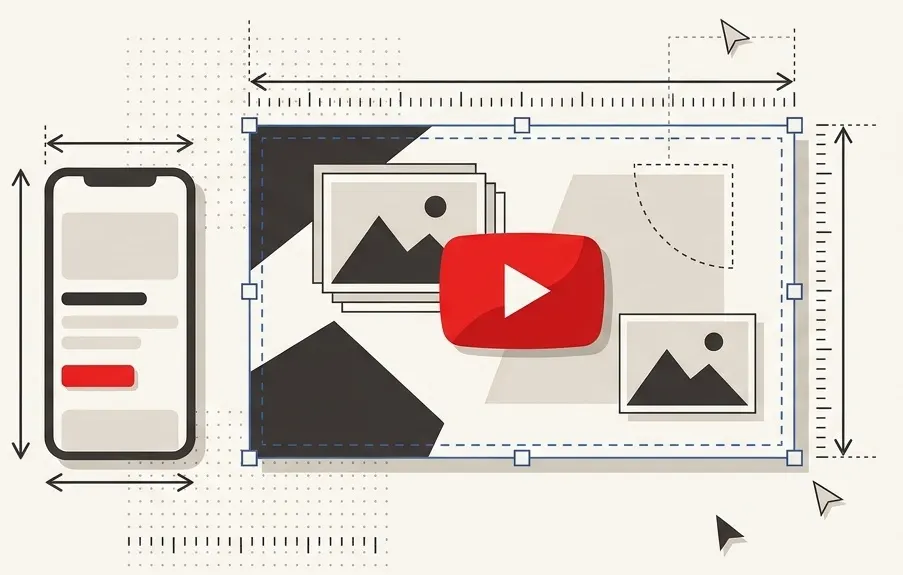
YouTube recommends 3840 × 2160 pixels for a custom video thumbnail, with a minimum width of 640 pixels. It recommends a 16:9 aspect ratio for videos.
For an uploaded custom Shorts thumbnail, YouTube recommends 2160 × 3840 pixels, a minimum height of 640 pixels, and a 9:16 aspect ratio. YouTube currently says custom Shorts thumbnails can be uploaded only through YouTube Studio on a computer, and the account must be verified.
A 1280 × 720 image is a practical smaller option for a standard video: it has a 16:9 ratio and exceeds the minimum width. It may also be easier to keep under the mobile upload limit.
YouTube Thumbnail Dimensions, Resolution, and Aspect Ratio Explained
Dimensions are an image’s width and height in pixels. Aspect ratio describes its shape: a 16:9 image is wider than it is tall, while a 9:16 image is vertical. More pixels can help an image remain sharp at larger display sizes, provided the source image contains enough detail.
| Thumbnail type | YouTube’s recommended size | Minimum | Recommended aspect ratio |
|---|---|---|---|
| Video | 3840 × 2160 px | 640 px wide | 16:9 |
| Shorts | 2160 × 3840 px | 640 px tall | 9:16 |
| Podcast playlist | Not specified in the thumbnail guide | Not specified in the thumbnail guide | 1:1 |
YouTube says custom thumbnails are also used as preview images in embedded players. Use a clear, high-quality source rather than enlarging a small or blurry image just to reach the recommended dimensions.
YouTube Thumbnail File Size and Supported Formats
YouTube recommends uploading thumbnails in image formats such as JPG or PNG. Its documented file-size limits depend on the upload device:
- Computer: Under 50 MB for video, Shorts, and podcast thumbnails.
- Mobile: Under 2 MB for video thumbnails and under 10 MB for podcasts.
YouTube’s current guide directs custom Shorts thumbnail uploads to Studio on a computer; it does not list a separate mobile upload limit for them.
JPG is often a good choice for photos because it can produce a relatively small file. PNG can be useful for graphics and text with sharp edges, although file sizes vary. If a video thumbnail is too large for mobile upload, try exporting a JPG at a lower quality setting or reducing the dimensions to 1920 × 1080 or 1280 × 720. Check both the appearance and the resulting file size before uploading.
Why Is the 16:9 Aspect Ratio Important for YouTube Thumbnails?
YouTube recommends 16:9 for video thumbnails because it is widely used in YouTube players and previews. Designing for that shape helps you control the composition rather than relying on how a different-shaped image might be fitted into a preview.
Display can vary by surface. YouTube notes that for vertical videos with 16:9 custom thumbnails, an automatically generated 4:5 thumbnail replaces the custom image on the home, Explore, and subscription pages. The custom thumbnail still appears on the watch feed, in watch history, and on non-mobile platforms.
For an uploaded custom Shorts thumbnail, use YouTube’s recommended 9:16 layout. That recommendation does not mean the image will fill every placement or always be shown in the Shorts feed. Keep the subject and any essential text away from the edges, and check how the Short appears on relevant surfaces after publishing.
How to Create a High-Quality YouTube Thumbnail
- Choose one idea. Pick a visual that explains the video’s subject or promise, such as a product, a person, or a before-and-after comparison.
- Set up the canvas. For a standard video, use 3840 × 2160 pixels at 16:9, or a smaller 16:9 canvas if that better suits your source image and upload needs.
- Build a clear composition. Make the main subject easy to recognize and leave room around important elements.
- Add text only if it helps. Use a few large words that complement the title rather than repeating it in full.
- Preview and export. Check the design at a small size, export as JPG or PNG, and confirm that the file is below the applicable limit.
Example: prepare a 4000 × 3000 photo
- Open the photo in an image editor with cropping and pixel-resizing controls.
- Crop it to 16:9, keeping the subject comfortably inside the frame. A full-width crop would be 4000 × 2250 pixels.
- Resize the cropped image to 3840 × 2160 pixels, or to 1920 × 1080 for a smaller output.
- Export as JPG or PNG. Inspect the result for blur or compression artifacts and check its file size.
Best YouTube Thumbnail Design Tips to Get More Clicks
- Use a clear focal point. Make the most important subject easy to identify without competing details.
- Create contrast. Separate the subject and text from the background with contrasting colors or brightness.
- Keep text readable. Use large, bold lettering and test the image at a small preview size, such as 320 × 180 pixels.
- Make faces purposeful. If you use a face or expression, make sure it fits the video rather than promising something the content does not deliver.
- Build recognition. A consistent palette, typeface, or layout can help give your channel a recognizable visual style.
- Leave breathing room. Avoid placing critical text or faces at the extreme edges, where different displays or interface elements may obscure them.
- Match the video. A compelling thumbnail should accurately represent the content viewers will see.
These are design principles, not guarantees of a higher click-through rate. Compare results with your audience and improve future designs based on what you learn.
Common YouTube Thumbnail Mistakes to Avoid
- Using a video image below YouTube’s 640-pixel minimum width, or a Shorts image below its 640-pixel minimum height.
- Stretching an image to a new aspect ratio instead of cropping and resizing it proportionally.
- Assuming a 16:9 custom thumbnail for a vertical video will appear unchanged on every YouTube surface.
- Uploading a file that exceeds the limit for the device and content type.
- Using small text, low contrast, or too many competing elements.
- Using misleading imagery or content that violates YouTube’s Community Guidelines. YouTube may reject a thumbnail or issue a strike, and repeated violations can affect thumbnail privileges.
How to Upload or Change a YouTube Thumbnail
Uploading a custom thumbnail requires a verified account. Follow YouTube’s verification process at youtube.com/verify if you have not already done so. Availability can also be affected by YouTube’s thumbnail policies and daily upload limits.
For a video on a computer:
- Sign in to YouTube Studio and select Content.
- Open the video you want to edit.
- Under Thumbnail, select Upload file and choose your image.
- Click Save.
For a Short: In YouTube Studio on a computer, select Content, then Shorts. Open the Short, choose Upload file under Thumbnail, and save. YouTube says you can add the custom thumbnail during a computer upload or after the Short has been uploaded.
For a video in the YouTube Studio mobile app:
- Open the app and tap Content.
- Select the video, then tap Edit and Edit thumbnail.
- Tap Custom thumbnail and select your image.
- Confirm the selection and tap Save.
Thumbnail changes may take time to appear across YouTube. If you reach the daily custom thumbnail limit, YouTube advises trying again in 24 hours.
How to Download YouTube Video Thumbnails
To save a publicly available thumbnail for reference or to archive your own work, use the YouTube Thumbnail Downloader:
- Copy the URL of the public YouTube video.
- Paste the link into the downloader and start the extraction.
- Review the preview and any available size options, then save the image you need.
Available sizes depend on the video. The tool retrieves thumbnail images, not the video itself. Respect copyright and seek permission before reusing someone else’s thumbnail.
For channel artwork, see the YouTube Channel Logo Downloader and YouTube Channel Banner Downloader.
How to Resize an Image for a YouTube Thumbnail
- Open your source image in an editor that supports cropping and exact pixel dimensions.
- Crop to 16:9 for a standard video, or 9:16 for an uploaded custom Shorts thumbnail. Reposition the crop so important content stays visible.
- Resize proportionally to your chosen output dimensions. For example, use 3840 × 2160 for a video or 2160 × 3840 for a Short.
- Export as JPG or PNG and check the file size against the applicable upload limit.
- Preview the exported file at a small size before uploading.
If the source is smaller than the target, enlarging it adds pixels but does not restore missing detail. Use the best-quality source available and choose a smaller output if it looks clearer.
Frequently Asked Questions About YouTube Thumbnail Size
What is the recommended YouTube thumbnail size?
YouTube recommends 3840 × 2160 pixels at 16:9 for videos and 2160 × 3840 pixels at 9:16 for Shorts. The respective minimums are 640 pixels wide and 640 pixels tall.
Is 1280 × 720 still acceptable?
It meets YouTube’s stated minimum width and recommended 16:9 ratio for video thumbnails. Check the file format and upload-size limit as well.
What file formats does YouTube recommend?
The current Help guide lists image formats such as JPG and PNG.
Do I need a verified account?
Yes. YouTube says your account must be verified to upload a custom thumbnail for a video or Short.
Can I change a thumbnail after publishing?
Yes. You can edit a video’s thumbnail in YouTube Studio. YouTube also says you can add a custom Shorts thumbnail after upload using Studio on a computer. Changes may take time to appear.
Why was my thumbnail rejected?
Check whether your account is verified, the image meets the applicable specifications, and its content follows YouTube’s policies. If you see a daily-limit message, wait 24 hours and try again.
How can I get a copy of a thumbnail?
Paste a public video link into the YouTube Thumbnail Downloader and save an available image. Ask permission before reusing another creator’s work.
Conclusion
For a standard video, start with a clear 16:9 image and aim for YouTube’s recommended 3840 × 2160 pixels when your source supports it. For an uploaded custom Shorts thumbnail, use the recommended 9:16 format and upload through YouTube Studio on a computer. Choose JPG or PNG, stay below the applicable file-size limit, and make sure your account is verified.
Then focus on the viewer: make the subject recognizable, keep any text legible at a small size, and ensure the image accurately represents the video.

Ahassan
CEO / Co-Founder
Hello, I'm A Hassan, the owner of YTLargeTools. I created YTLargeTools with a simple goal: to make useful online tools accessible to everyone. I believe everyday tasks should be simple, convenient and easy to complete without unnecessary complications.
Recent Posts